What Happens After Pressing the POWER Button?
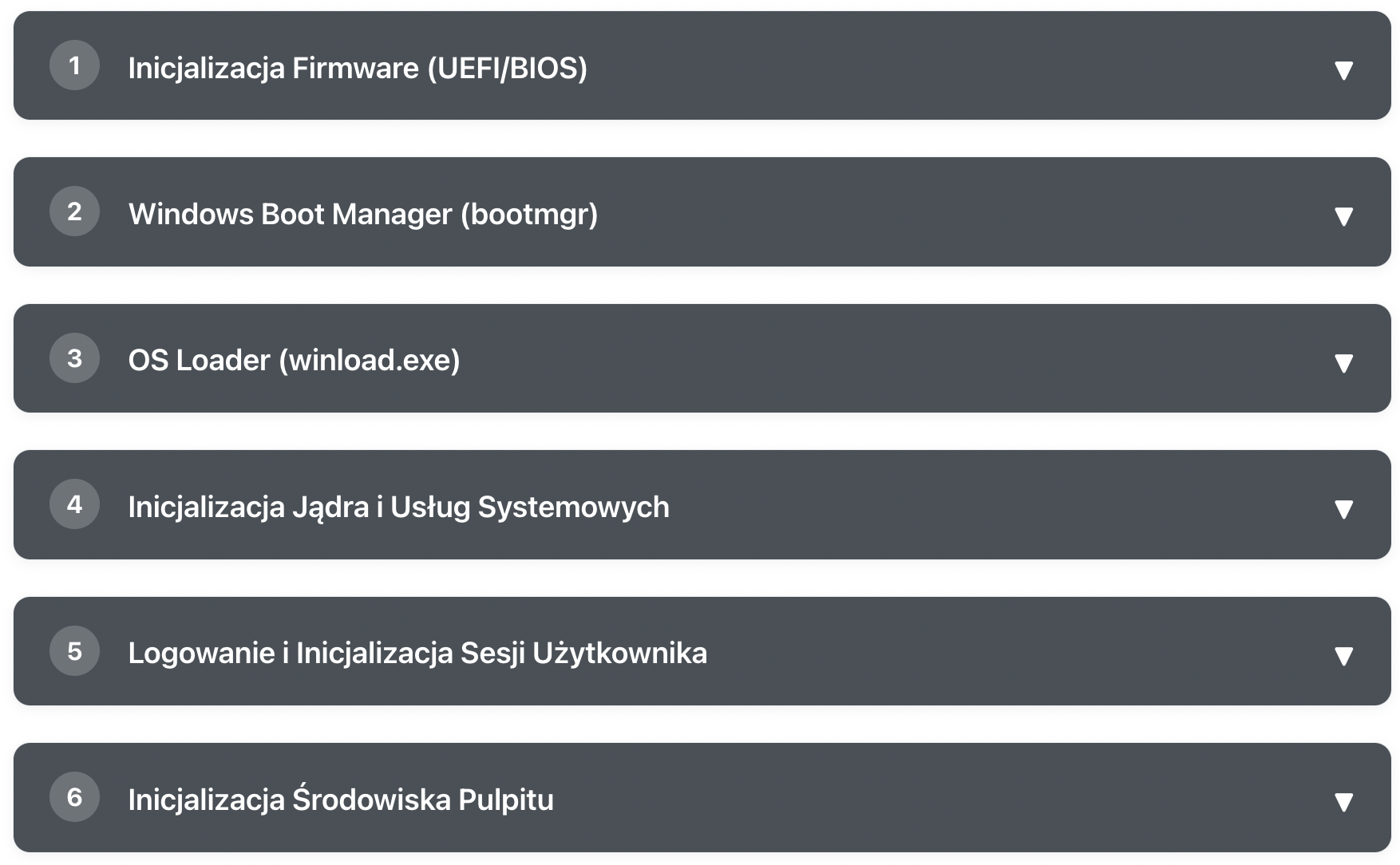
🚀 Windows Boot Sequence
Learn step by step how Windows goes from pressing the power button to a ready desktop.
Phase 1: Firmware Initialization (UEFI/BIOS)
When you press the power button, the first thing that takes control is not Windows, but the computer's firmware. Think of firmware as a building security guard who must check all security systems and basic infrastructure before letting the first employees in.
Firmware Action Sequence
Power-On Self Test (POST)
Firmware systematically tests key components: checks if RAM responds to test patterns, verifies if the processor can execute basic instructions, and confirms storage device availability.
Hardware Controller Initialization
Configuration of basic controllers: memory, USB ports, SATA/NVMe controllers, and the graphics card in basic mode.
Secure Boot and TPM Verification
On UEFI systems, digital signatures of boot components are checked. TPM (Trusted Platform Module) prepares the cryptographic foundations for secure booting.
Boot Device Selection
The system determines which device to boot the operating system from, based on the boot order set in UEFI/BIOS.
Phase 2: Windows Boot Manager (bootmgr)
Windows Boot Manager works like a receptionist in a large company - it knows where all departments are and redirects you to the right place. This is the first real Windows component that takes control from firmware.
Phase 3: OS Loader (winload.exe)
The OS Loader is a very responsible component - it must load the Windows kernel, drivers, and prepare the environment for the full operating system.
Phase 4: Kernel and System Services Initialization
After loading the kernel, Windows truly "comes alive." The kernel initializes all its subsystems, starts system managers, and prepares the ground for the user environment.
Phase 5: Login and User Session Initialization
Logging in is much more than checking a password. The system must load the user profile, launch Windows Explorer, apply group policies, and prepare a personalized work environment.
Phase 6: Desktop Environment Initialization
Finally, you see the desktop, taskbar, and can click on icons. But underneath, a lot is still happening. The system finishes loading drivers, launches startup programs, initializes background services, and finalizes all system components.
✅ The boot process is complete! The Windows system is fully loaded and ready for work.
Does your computer stop at one of these stages and you worry about your files? See how data recovery in our laboratory works — approximate prices are in our price list.
Founder of the workshop (since 2009), personally supervises every repair and data recovery. Over 18 000+ completed orders. About Us
Zobacz, jak to robimy
Prawdziwe nagrania z naszego laboratorium — @kolegainformatyk
Powiązane artykuły

SSD TRIM: How to Check It and When Not to Disable It
How TRIM works, how to check its state, and why disabling it after data loss cannot undo a command already sent to the SSD.

Can You Recover Deleted Data from an SSD?
Can deleted data be recovered from an SSD? It depends on TRIM, garbage collection, the controller, encryption, and what happened after deletion.
Mac Password Reset Without Data Loss — Intel and M1–M4
Forgot your MacBook, iMac, or Mac mini password? The resetpassword command in macOS allows you to regain access to Mac Intel and Apple Silicon (M1/M2/M3/M4)...